![jt-logo-dark.png]](https://support.jacktrip.com/hs-fs/hubfs/jt-logo-dark.png?height=40&name=jt-logo-dark.png)
It can be difficult to record in Logic. JackTrip's audio bridge runs as an effects plugin, and (as far as I know) Logic only lets you record tracks pre-plugins. This can be especially confusing because input monitoring a track shows the signal post-plugins: you'll see the audio signal coming from JackTrip, but it doesn't show up in the track when recording.
The trick is to create a bus track for JackTrip's signal that is separate from your audio recording track.
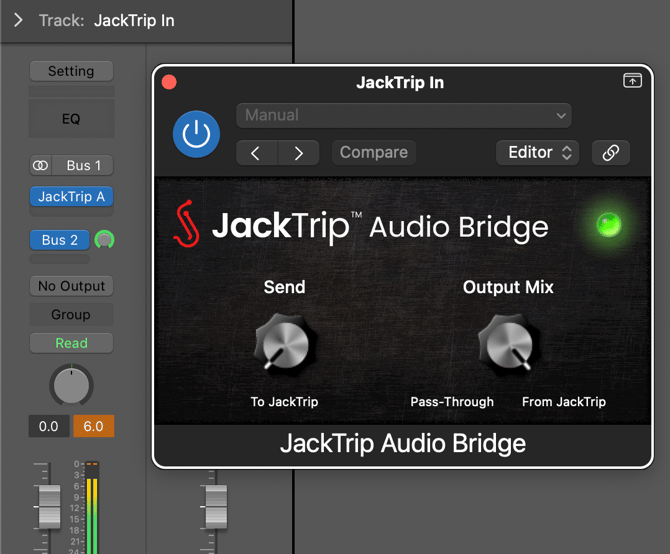
- Create a new "JackTrip In" audio track:
- Set input to an empty bus track, say "Bus 1"
- Click the channel mode circle to enable stereo mode
- Set Send: set to a different bus track, say "Bus 2", and turn it all the way up
- Set Output: "No output"
- Add the audio bridge plugin to effects
- By default, the knobs in the audio bridge are set for sending audio
- Turn "Output Mix" knob all the way up (to the right)
- Optionally, turn "Send" knob all the way down (to the left)
- Enable input monitoring
- You should now see the signal from JackTrip in the volume meter
- Create a new "Recording" audio track:
- Set the input to whichever you chose previously as JackTrip's output bus, i.e. "Bus 2"
- Click the channel mode circle to enable stereo mode
- Set Output: "No output"
- Arm it for recording
- Record!